> ## Documentation Index
> Fetch the complete documentation index at: https://docs.cosmosid.com/llms.txt
> Use this file to discover all available pages before exploring further.
# Exporting Data from Cosmos-Hub Pipelines
> This guide walks you through exporting profiled samples from Cosmos-Hub Pipelines and importing them into a Cosmos-Hub 2.0 workspace
Cosmos-Hub Pipelines remains the sample profiling engine of the Cosmos-Hub ecosystem. For a refresher on how to upload and profile FASTQ files for your samples, please visit [Uploading Sequencing Data](https://docs.cosmosid.com/docs/sample-upload) and [Running Data Workflows](https://docs.cosmosid.com/docs/workflows)
Profiles previously generated on Cosmos-Hub Pipelines can be imported into your Cosmos-Hub 2.0 workspaces.
## Before starting
Before starting the import, you will need to:
* Create or ensure there is a destination workspace in Cosmos-Hub 2.0 to receive the data.
* Have a folder of samples already profiled on Cosmos-Hub Pipelines.
* Have access to both Cosmos-Hub Pipelines and Cosmos-Hub 2.0 with the same account.
## Import sample profiles from Cosmos-Hub Pipelines
1. Once logged on [Cosmos-Hub Pipelines](https://app.cosmosid.com/), navigate to the **Sample View** menu and open the folder with your profiled samples.
2. Set **Rows per page** to the maximum (10,000) and select all samples.
3. Click on '**Export to Cosmos-Hub 2.0**'
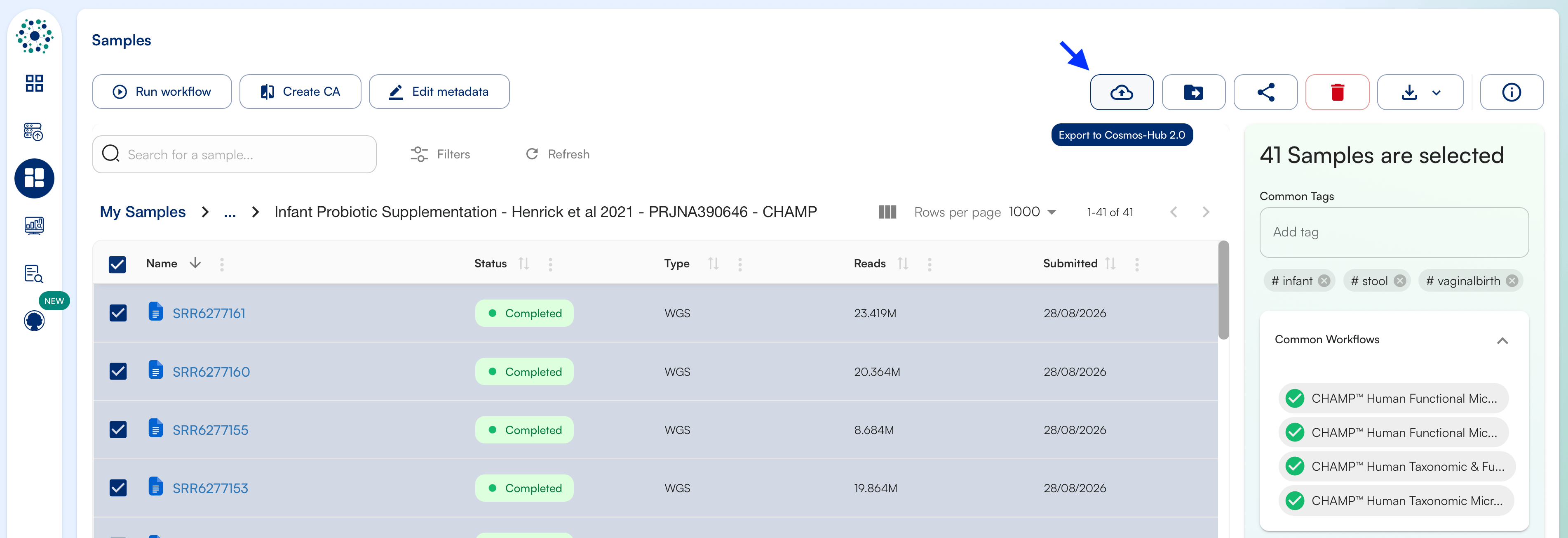 The Export Dialog shows the list of samples selected for export and which workflows will be included.
1. Enter a name in the **Define the CA Name** field. Depending on the number and workflows of profiles, the export might take a while to complete. You can track progress on the [Comparative Analysis](https://app.cosmosid.com/comparative) page under the name you entered.
2. Select the Target Workspace from the dropdown list. Export of profiles is available only for workspaces that you have write access to.
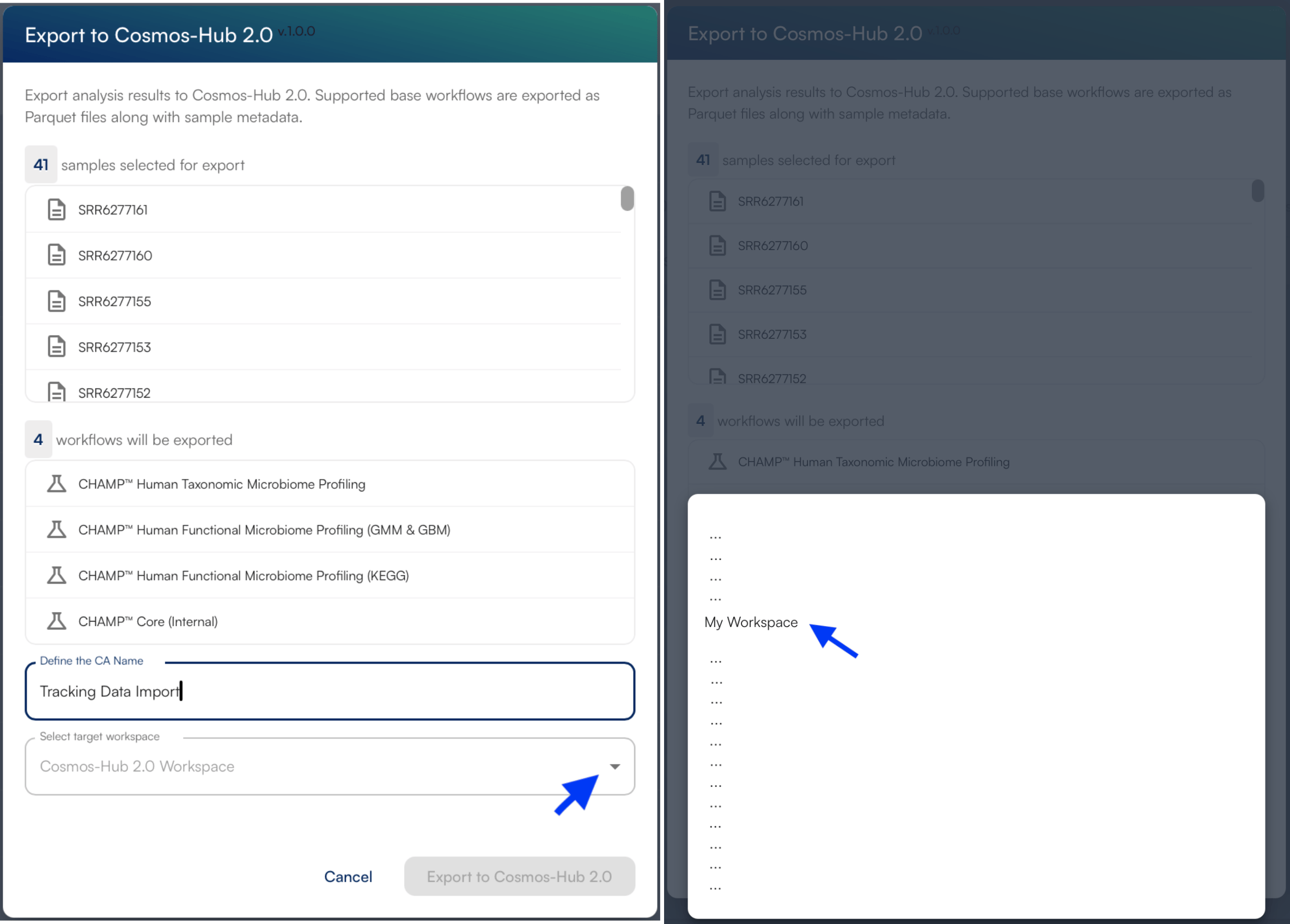 3. Click on Export to Cosmos-Hub 2.0.
When the export job's status changes to Success, the profiles will be available in the destination Cosmos-Hub 2.0 workspace and ready for cohort building and analysis.
## Next step
Use the Query Builder to select the samples for your first analysis.
3. Click on Export to Cosmos-Hub 2.0.
When the export job's status changes to Success, the profiles will be available in the destination Cosmos-Hub 2.0 workspace and ready for cohort building and analysis.
## Next step
Use the Query Builder to select the samples for your first analysis.