> ## Documentation Index
> Fetch the complete documentation index at: https://docs.cosmosid.com/llms.txt
> Use this file to discover all available pages before exploring further.
# Importing data into a study
> Once a Study has been created, it's necessary to import data into it. This page describes the main routes to import data into studies.
## Before you start
* [Create](/DAP_docs/studies#create-a-new-study) or [join](/DAP_docs/studies#access-a-study) a study already created in a workspace
## How to import data into a Study
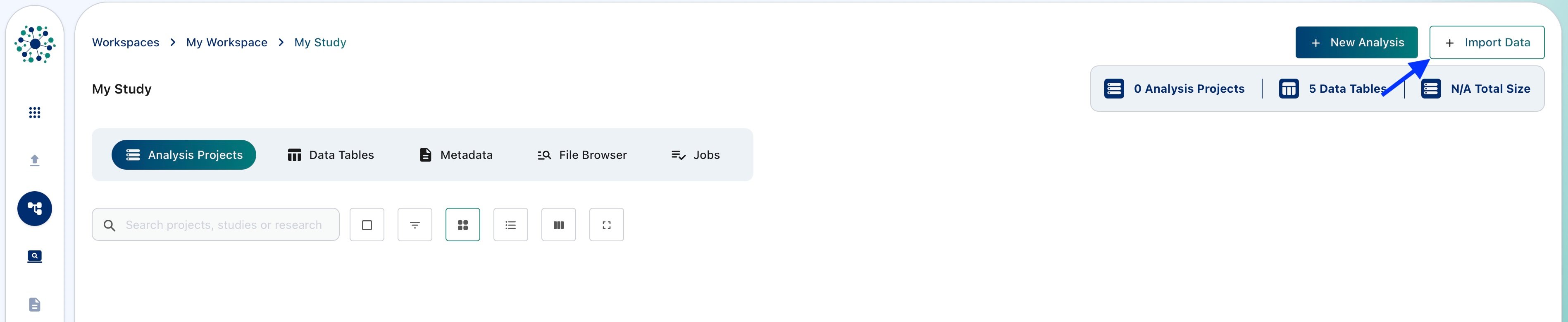
Inside the Study Dashboard, click on '**+ Import Data**' to open the Import Dialog
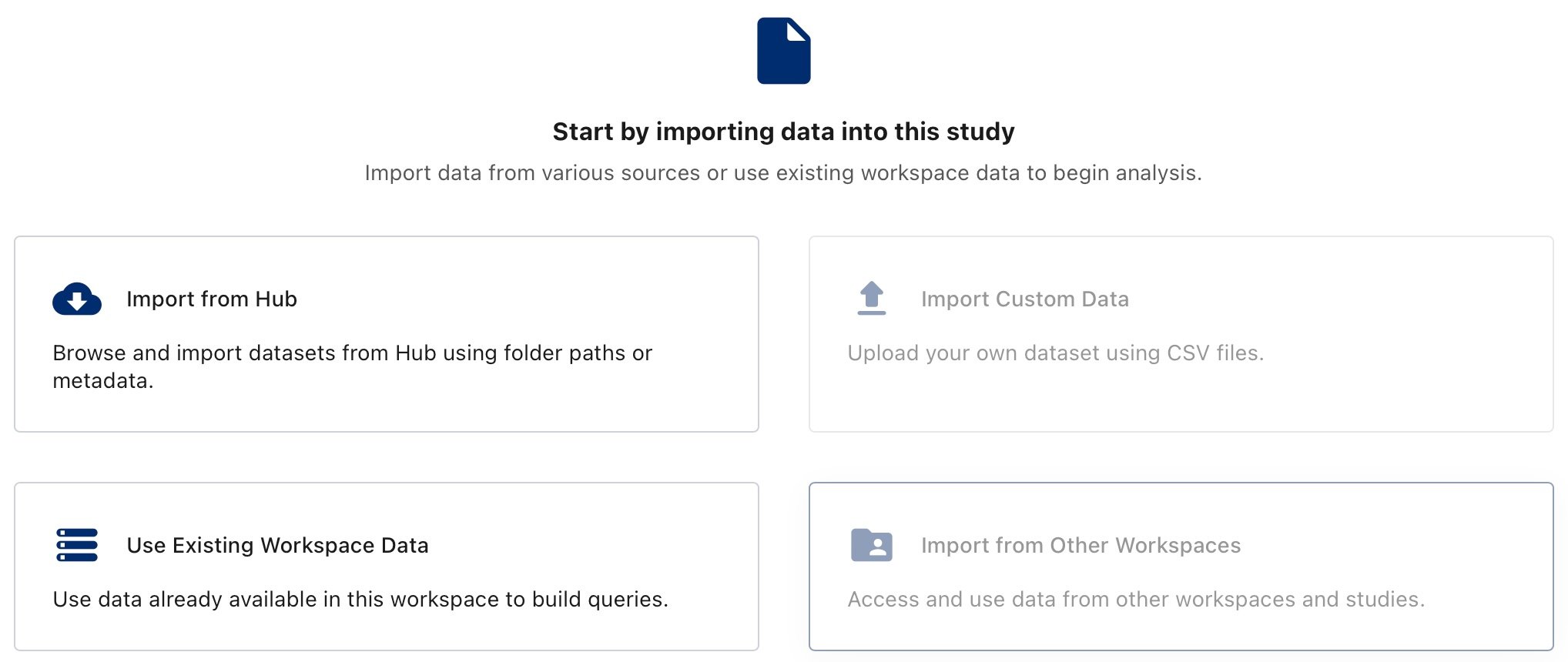 ### Import from Hub
Any metadata associated with your samples on Cosmos-Hub Pipelines is imported along with the data tables.
### Import from Hub
Any metadata associated with your samples on Cosmos-Hub Pipelines is imported along with the data tables.
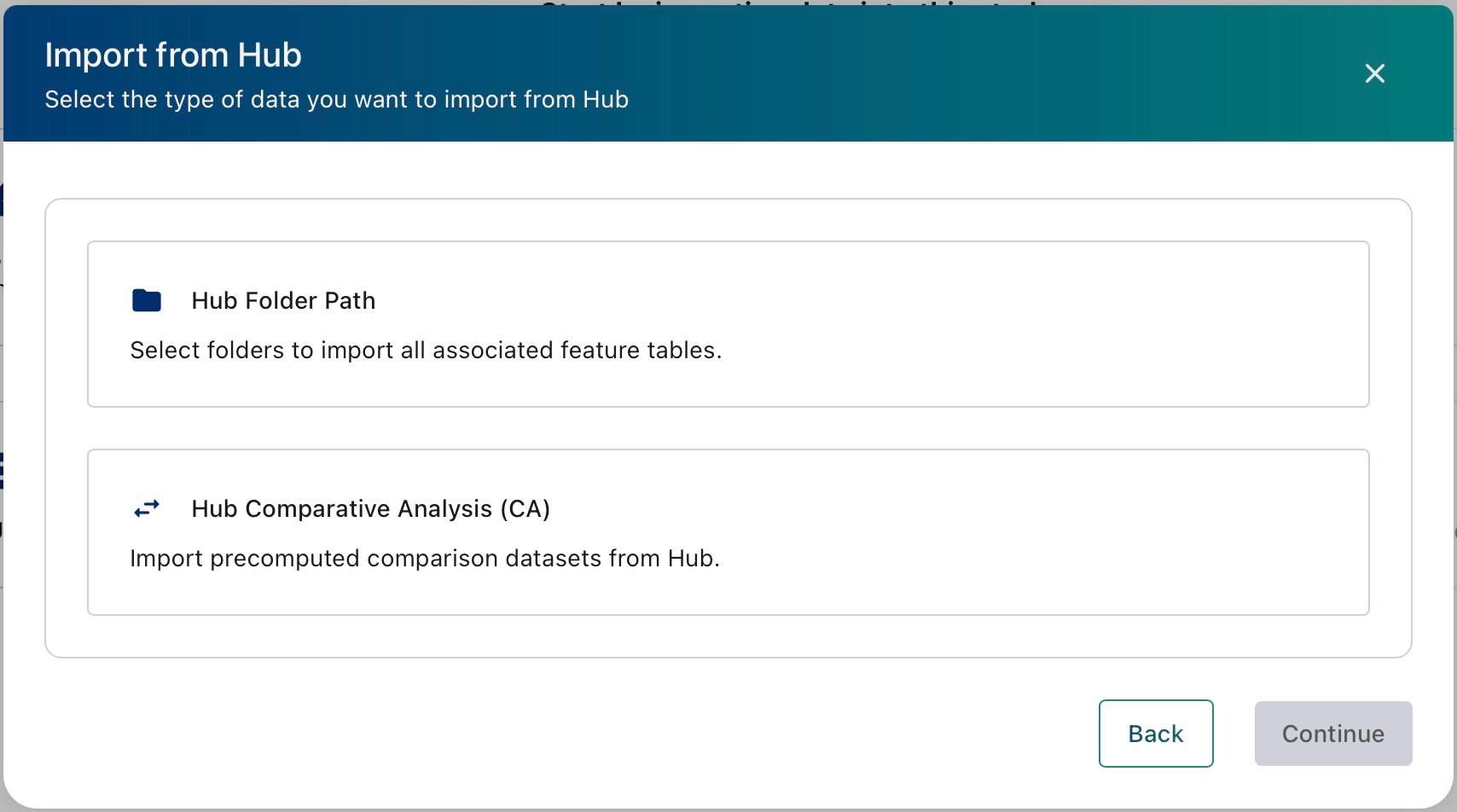 Select which project folder(s) you want to import the profiles from and click on 'Compare Samples' to start importing
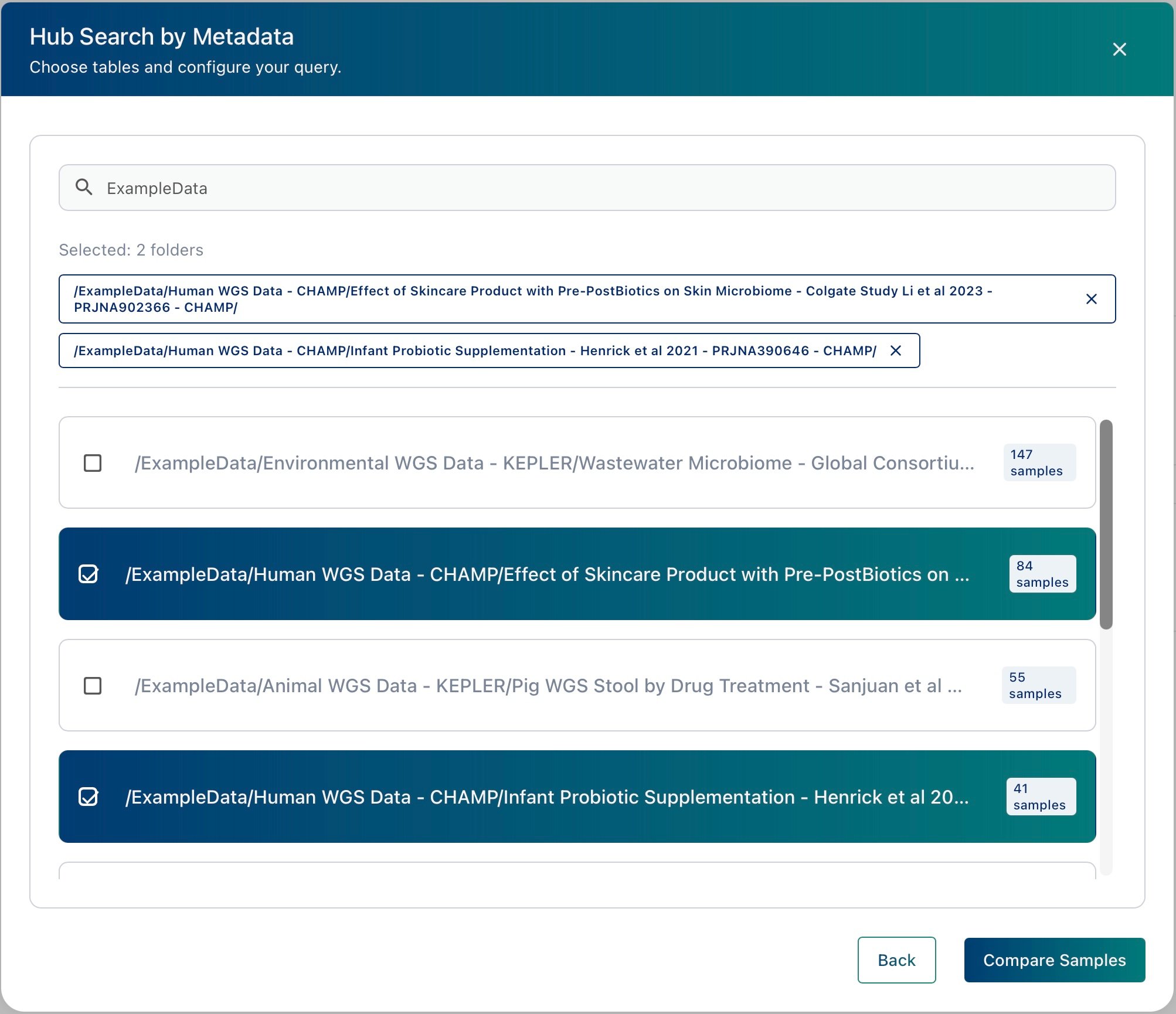 If you have a Comparative Analysis (CA) that was created on Cosmos-Hub Pipelines, you can import its data into a study.
Choosing a CA imports the source data table along with its associated metadata, the cohort definitions from your original query, and all the workflows associated with that CA.
If you have a Comparative Analysis (CA) that was created on Cosmos-Hub Pipelines, you can import its data into a study.
Choosing a CA imports the source data table along with its associated metadata, the cohort definitions from your original query, and all the workflows associated with that CA.
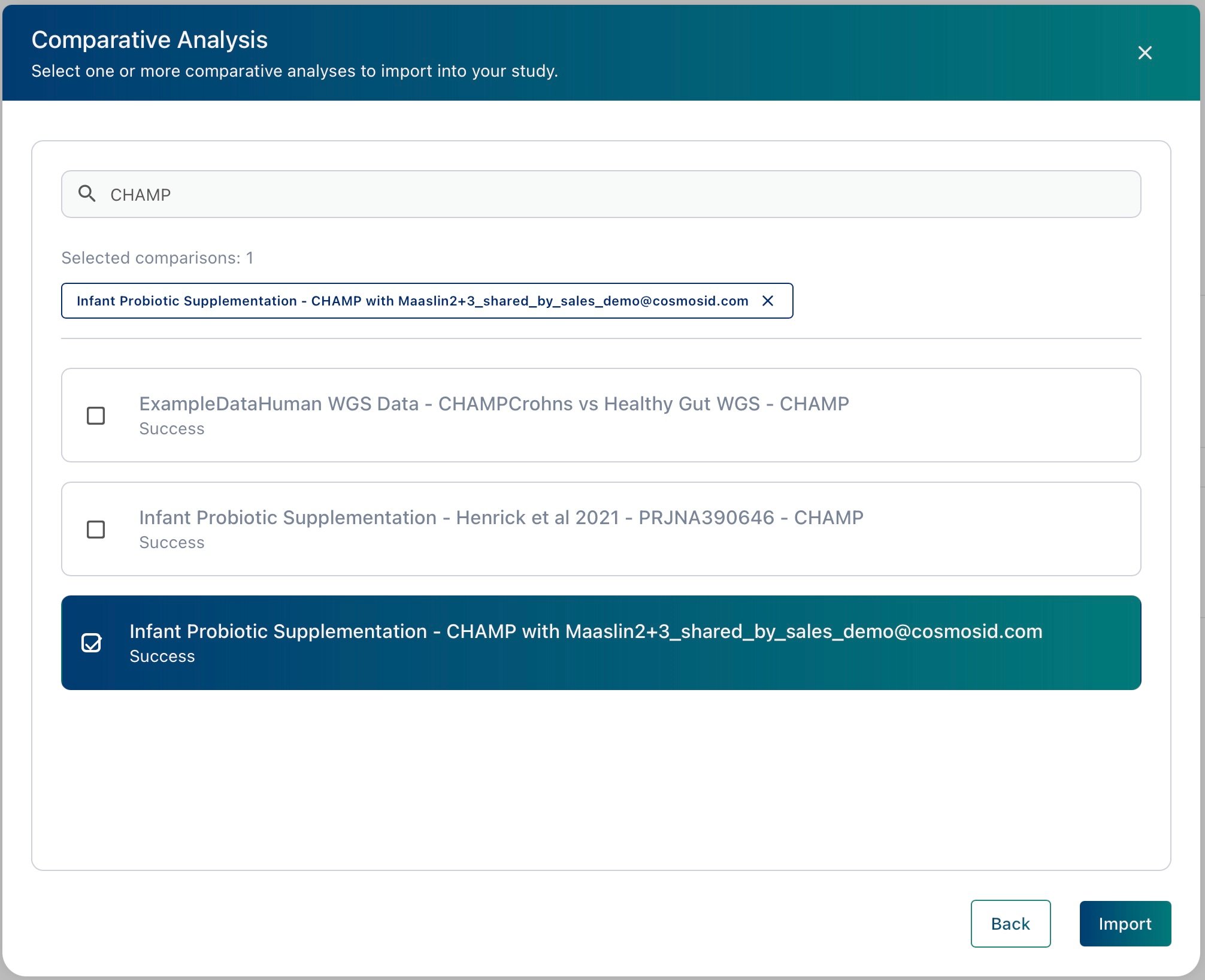 1. Select comparative analyses you wish to import the profiles of the underlying cohort
2. Click on 'Import' to start the import.
### Use Existing Workspace Data
Choose this option if the data you need is already available in the workspace.
Selecting **Use Existing Workspace Data** allows to select the [AI Query Builder](DAP_docs/query-builder) where you choose a data table and filter it down to the samples your analysis needs.
If you create a study in a workspace that has no data yet, you'll be prompted to import some first — see [Import from Hub](#import-from-hub).
## Coming soon
Two more routes for importing data into a study or workspace are under development:
* **Import Custom Data**: create cohorts and run analyses on Data Tables generated outside of the Cosmos-Hub platform..
* **Import from Other Workspaces**: move data from one workspace to another and put it straight to work in a new study, without importing it again.
## Next steps
Shape your imported data into the exact dataset for an analysis.
Run analysis modules on the dataset you build.
1. Select comparative analyses you wish to import the profiles of the underlying cohort
2. Click on 'Import' to start the import.
### Use Existing Workspace Data
Choose this option if the data you need is already available in the workspace.
Selecting **Use Existing Workspace Data** allows to select the [AI Query Builder](DAP_docs/query-builder) where you choose a data table and filter it down to the samples your analysis needs.
If you create a study in a workspace that has no data yet, you'll be prompted to import some first — see [Import from Hub](#import-from-hub).
## Coming soon
Two more routes for importing data into a study or workspace are under development:
* **Import Custom Data**: create cohorts and run analyses on Data Tables generated outside of the Cosmos-Hub platform..
* **Import from Other Workspaces**: move data from one workspace to another and put it straight to work in a new study, without importing it again.
## Next steps
Shape your imported data into the exact dataset for an analysis.
Run analysis modules on the dataset you build.