> ## Documentation Index
> Fetch the complete documentation index at: https://docs.cosmosid.com/llms.txt
> Use this file to discover all available pages before exploring further.
# Workspaces
> The digital counterpart of a microbiome research unit: a virtual space where members of a research team can keep all the assets, omics data, analysis tools and results together.
## What is a workspace?
#### A virtual microbiome research unit
The **Workspace** is the virtual representation of the microbiome bioinformatics research unit of a laboratory or research team. It acts as a shared container where the work, assets, analytical tools, and knowledge produced by that research unit are organised around a specific project or research activity.
The Workspace brings experimental data, metadata, analyses, results, and research knowledge into a single query-able environment. As data is processed, analysed, interpreted, and reviewed, its relationships and scientific context are preserved.
Over time, each project also contributes to a growing body of institutional knowledge, allowing teams to build on previous analyses, findings, and expertise rather than starting from scratch.
In the Cosmos-Hub hierarchy, a Workspace is the top-level container for the Studies carried out by the research unit.
The Workspace Dashboard is the first interface a user lands on after logging into the Cosmos-Hub 2.0. The Workspace Dashboard lists all workspaces visible to your account, including:
* Workspaces you created
* Workspaces you were invited to collaborate on.
* Workspaces made visible to you by an administrator of your Cosmos-Hub subscription or organization
Each entry of the Workspace Dashboard shows workspace metadata, such as the Number of Studies it contains, the Owner of the workspace and when was the last time a study was modified.
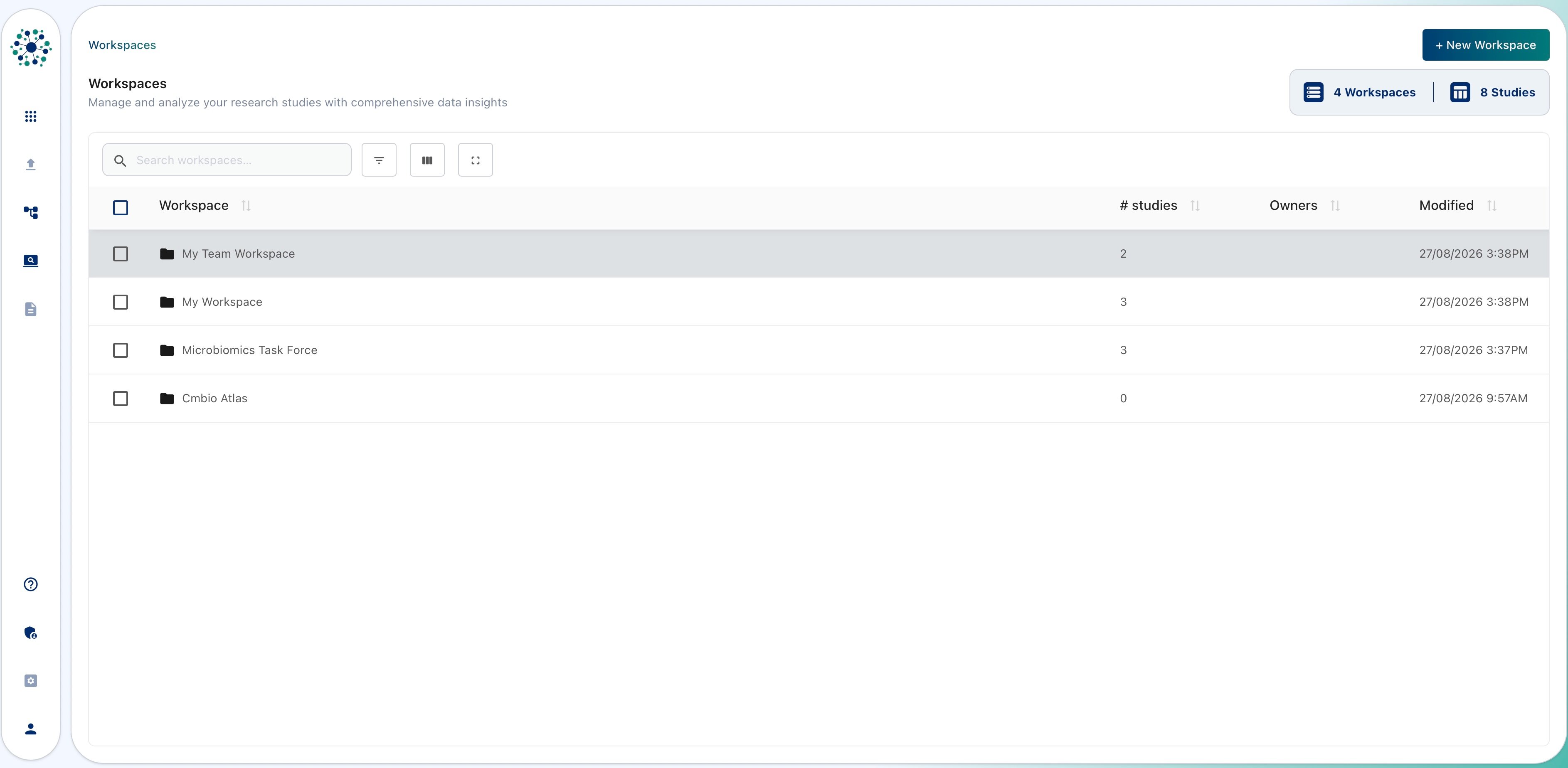 ## Accessing a workspace
Enter a workspace by clicking on its name . A Workspace contains [**Studies**](DAP_docs/studies), which represent the individual research projects carried out by the research unit.
## **Create a new workspace**
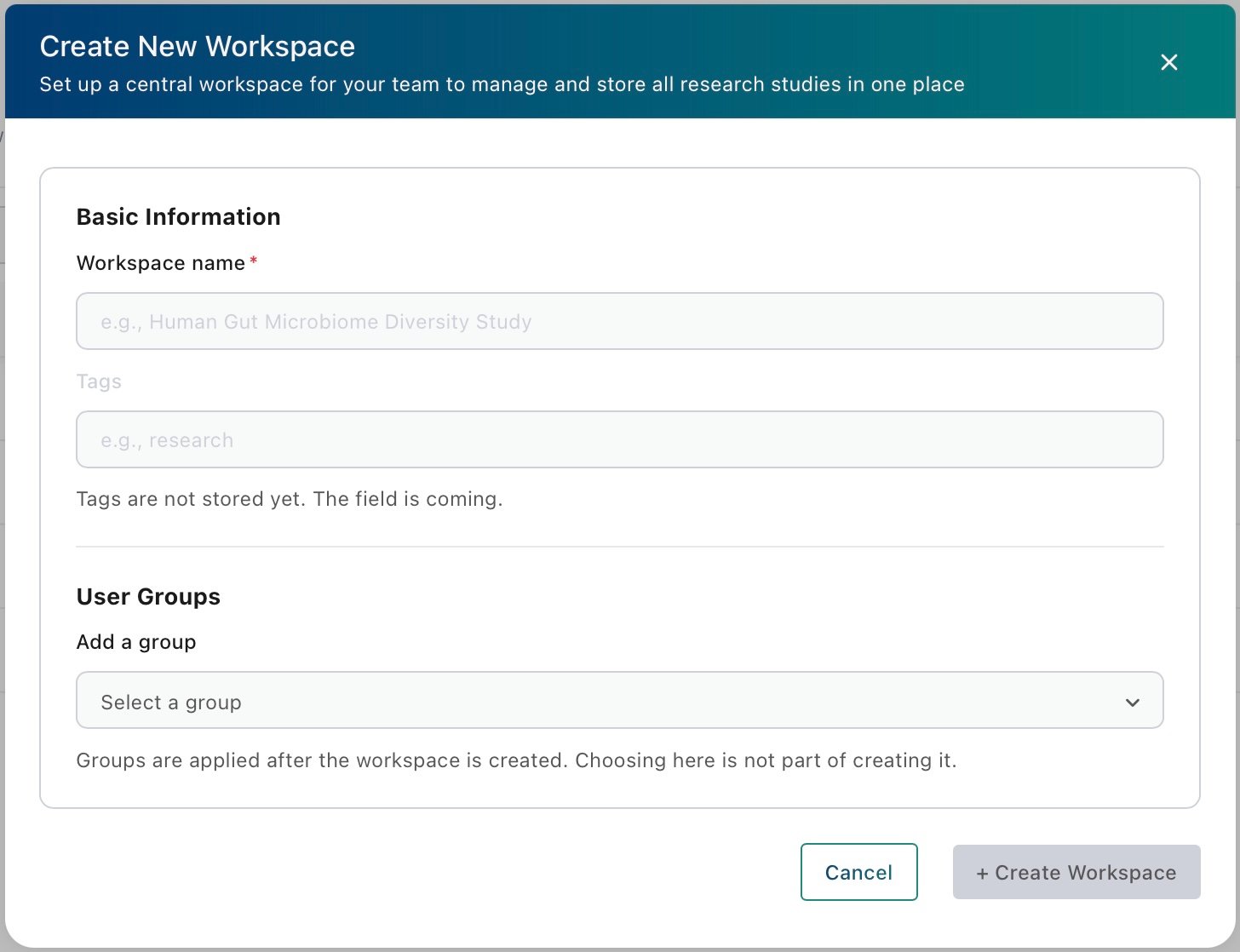
1. From the Workspaces Dashboard, click on "+ New Workspace" in the top-right corner of the interface to open the Workspace Creation dialog.
2. Once created, the new workspace will appear on the Workspace Dashboard
## Accessing a workspace
Enter a workspace by clicking on its name . A Workspace contains [**Studies**](DAP_docs/studies), which represent the individual research projects carried out by the research unit.
## **Create a new workspace**
1. From the Workspaces Dashboard, click on "+ New Workspace" in the top-right corner of the interface to open the Workspace Creation dialog.
2. Once created, the new workspace will appear on the Workspace Dashboard
 ## Searching and filtering the Workspace Dashboard
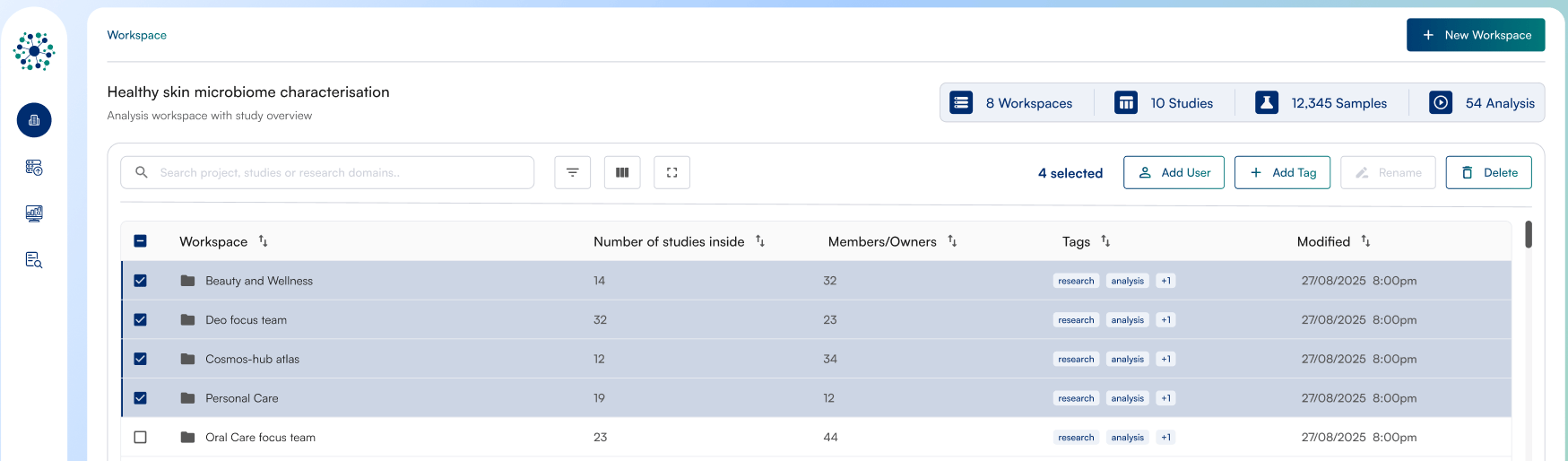
 Use the workspace search and display controls to quickly find and organize workspaces in your Cosmos-Hub 2.0 account. The **Search workspaces** bar allows you to find a workspace by entering its name or any part of its name.
1. **Show Filters**: displays dynamic filters below the column names in the Workspaces List. Use these filters to search within specific workspace metadata columns by entering text or numbers.
2. **Manage Columns**: toggle workspace metadata columns to be displayed from the list of workspaces.
3. **Full screen**: expands the Workspaces List to full-screen mode, making it easier to review, filter, and manage large lists of workspaces.
## Edit properties of an existing workspace
Editing workspace properties requires the appropriate permissions. If you believe you should have editing access, please contact the administrator(s) of your Cosmos-Hub subscription or workspace.
Use the workspace search and display controls to quickly find and organize workspaces in your Cosmos-Hub 2.0 account. The **Search workspaces** bar allows you to find a workspace by entering its name or any part of its name.
1. **Show Filters**: displays dynamic filters below the column names in the Workspaces List. Use these filters to search within specific workspace metadata columns by entering text or numbers.
2. **Manage Columns**: toggle workspace metadata columns to be displayed from the list of workspaces.
3. **Full screen**: expands the Workspaces List to full-screen mode, making it easier to review, filter, and manage large lists of workspaces.
## Edit properties of an existing workspace
Editing workspace properties requires the appropriate permissions. If you believe you should have editing access, please contact the administrator(s) of your Cosmos-Hub subscription or workspace.
 ### Share workspace access to individual Users or User Groups \[*Feature in Active Development*]
1. Update or modify workspace sharing settings by selecting it from the Workspace Dashboard
2. Click on "+ Manage Access" to open the workspace's access control panel.
### Share workspace access to individual Users or User Groups \[*Feature in Active Development*]
1. Update or modify workspace sharing settings by selecting it from the Workspace Dashboard
2. Click on "+ Manage Access" to open the workspace's access control panel.
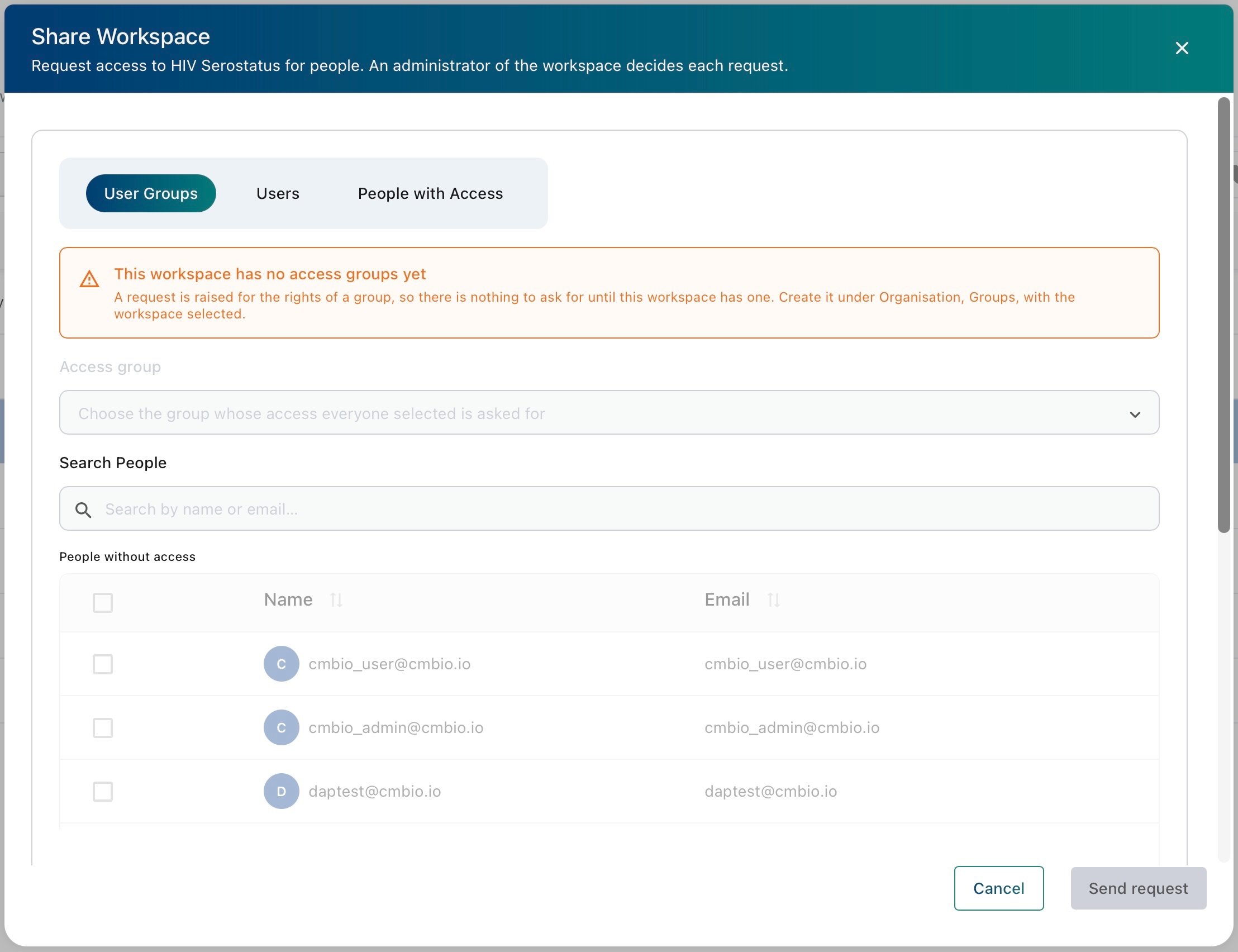 Workspace access and auditing can be managed through the three tabs:
* **User Groups**: grant access through an existing group.
* **Users**: grant access to individual people.
* **People with Access**: audit users with access to the workspace.
### Renaming a workspace
Select a single workspace and click on **Rename** to change its name.
Workspace names must be unique across the Workspace Dashboard.
### Deleting a workspace
Deleting a workspace is permanent and cannot be undone. All associated data, settings, and results will be removed.
Select a single workspace and click on **Delete**.
Workspace access and auditing can be managed through the three tabs:
* **User Groups**: grant access through an existing group.
* **Users**: grant access to individual people.
* **People with Access**: audit users with access to the workspace.
### Renaming a workspace
Select a single workspace and click on **Rename** to change its name.
Workspace names must be unique across the Workspace Dashboard.
### Deleting a workspace
Deleting a workspace is permanent and cannot be undone. All associated data, settings, and results will be removed.
Select a single workspace and click on **Delete**.