> ## Documentation Index
> Fetch the complete documentation index at: https://docs.cosmosid.com/llms.txt
> Use this file to discover all available pages before exploring further.
# Raw Data Download
> The Cosmos-Hub allows you to store and download your raw fastqs/sequencing data from the dashboard.
Raw FASTQ files are only accessible for 30 days after upload, after which the files are moved to archives for 1 year. When archived, the data is unavailable for direct download or workflow use. To unarchive, please email your sample list to [help@cosmos-hub.com](mailto:help@cosmos-hub.com); a \$500 fee applies.
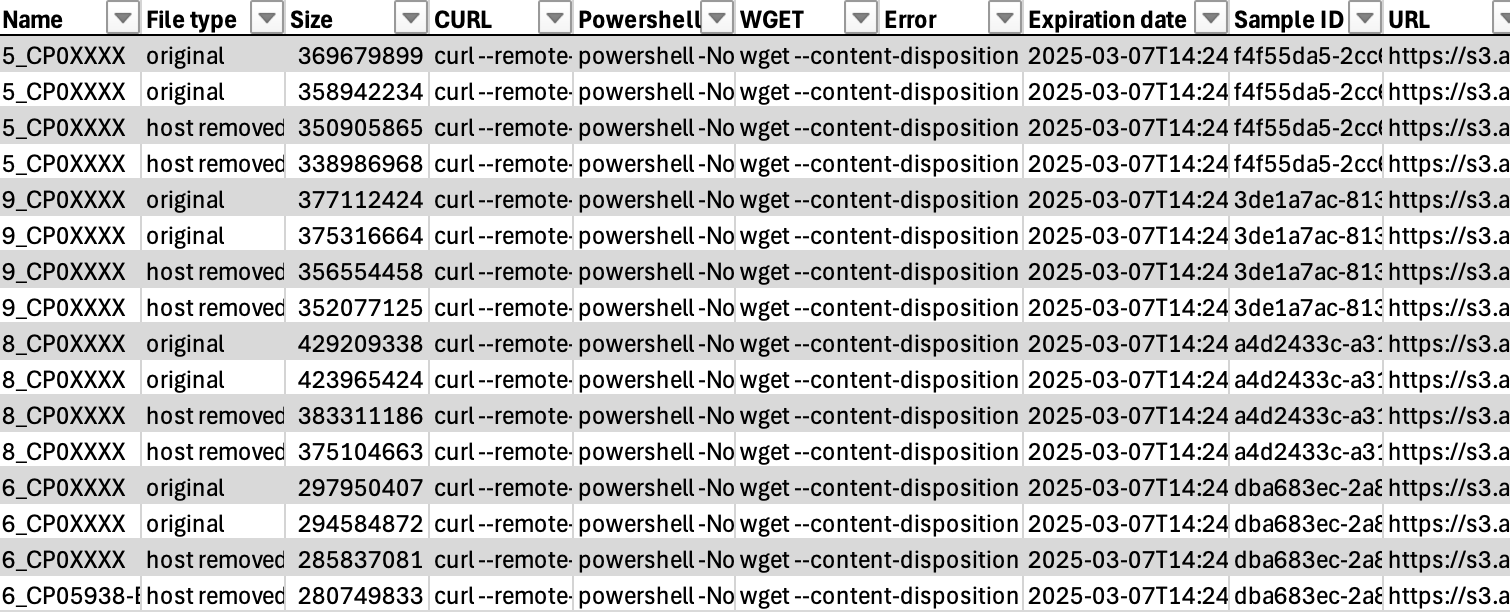
Start by selecting your samples in the "Cohorts and Metadata" menu, and select the "Export Samples" → "Get Download URLs" to generate download links in either CSV or TSV format.
Open it in a spreadsheet or text app to get the links. The URL column contains the download link for that particular sample (paired-end files will have 2 files with 2 unique URLs).
**Browser Method:**\
Paste URLs from the "URL" column directly into your web browser to initiate the download to your default Downloads folder.
**Terminal Method:**\
Use the provided preformatted commands (CURL, POWERSHELL, or WGET) from the spreadsheet. Simply navigate to your target directory in the terminal and paste the commands.
#### How can you download raw fastqs for multiple samples all at once using UNIX terminal or PowerShell from the download URL CSV/TSV file?
The bash/PowerShell commands can be used for downloading multiple files using the download URL CSV/TSV
```shell MacOS - wget theme={null}
## Downloading multiple files using download URL CSV
tail -n +2 samples_download_urls_2023_03_23_21_58.csv | cut -d',' -f6 | while read url; do
wget "$url"
done
## Downloading multiple files using download URL TSV
tail -n +2 samples_download_urls_2023_03_23_21_58.tsv | cut -f6 | while read url; do
wget "$url"
done
```
```powershell Windows 11 - PowerShell theme={null}
## Downloading multiple files using download URL CSV
Import-Csv -Path ".\.csv" -Delimiter ',' |
ForEach-Object {
$url = $_.URL.Trim()
if (-not [string]::IsNullOrWhiteSpace($url)) {
$filename = [System.IO.Path]::GetFileName(([Uri]$url).AbsolutePath)
if (-not (Test-Path -LiteralPath $filename)) {
Invoke-WebRequest -Uri $url -OutFile $filename
}
}
}
## Downloading multiple files using download URL TSV
Import-Csv -Path ".\.tsv" -Delimiter "`t" |
ForEach-Object {
$filename = [System.IO.Path]::GetFileName(($_.URL -split '\?')[0])
if (-not (Test-Path $filename)) {
Invoke-WebRequest -Uri $_.URL -OutFile $filename
}
}
```
# Downloading WGET on MacOS
**macOS users:** wget is not installed by default on macOS. You'll need to install it first using Homebrew:
1. Install Homebrew (if not already installed):
```bash theme={null}
/bin/bash -c "$(curl -fsSL https://raw.githubusercontent.com/Homebrew/install/HEAD/install.sh)"
```
2. Install wget:
```bash theme={null}
brew install wget
```
# Downloading on Windows 11
**Windows 11 users:**
1. **Download the CSV file from Cosmos Hub**\
Download the CSV/TSV file that contains your sample download links. You can follow steps 1 and 2 here at [https://docs.cosmosid.com/docs/download-your-raw-fastqs](https://docs.cosmosid.com/docs/download-your-raw-fastqs)
2. **Create a new empty folder**\
Create an empty folder on your computer and move the CSV/TSV file into it.
3. **Open PowerShell in that folder**\
Open the folder, right click on an empty space, and select **Open in Terminal**. If you do not see it, click **Show more options** first.
4. **Copy and paste this command into the PowerShell terminal** \
**Note**: Make sure to replace `"./.csv" ` with the exact name of your downloaded CSV/TSV file (e.g:`"./samples_download_urls_2026-05-08_18_46.csv"`).
\
**For CSV file**
```powershell theme={null}
Import-Csv -Path ".\.csv" | ForEach-Object { $filename = [System.IO.Path]::GetFileName(($_.URL -split '\?')[0]); if (-not (Test-Path $filename)) { Invoke-WebRequest -Uri $_.URL -OutFile $filename } }
```
**For TSV file**
```powershell theme={null}
Import-Csv -Path ".\.tsv" -Delimiter "`t" | ForEach-Object { $filename = [System.IO.Path]::GetFileName(($_.URL -split '\?')[0]); if (-not (Test-Path $filename)) { Invoke-WebRequest -Uri $_.URL -OutFile $filename } }
```
Note: Opening or editing the CSV or TSV file in spreadsheet software such as Microsoft Excel may change the delimiter used to separate the columns, depending on your local settings. If this happens, you may need to update the `-Delimiter` value in the PowerShell command accordingly.
5. **Press Enter**\
The downloads will start automatically. Keep the PowerShell window open until all files finish downloading. \
\
**Note**: depending on the number of files and their size, the download may take some time. Make sure your computer has enough available storage space before starting.