> ## Documentation Index
> Fetch the complete documentation index at: https://docs.cosmosid.com/llms.txt
> Use this file to discover all available pages before exploring further.
# Compare Samples (Comparative Analysis)
> How to create a new comparative analysis
# What is Comparative Analysis?
Use comparative analysis to compare samples to one another using metadata-based cohorts. The analysis creates a matrix showing which organisms appear in each sample with useful visualizations and diversity figures.
You must upload metadata or add tags before creating a comparative analysis.
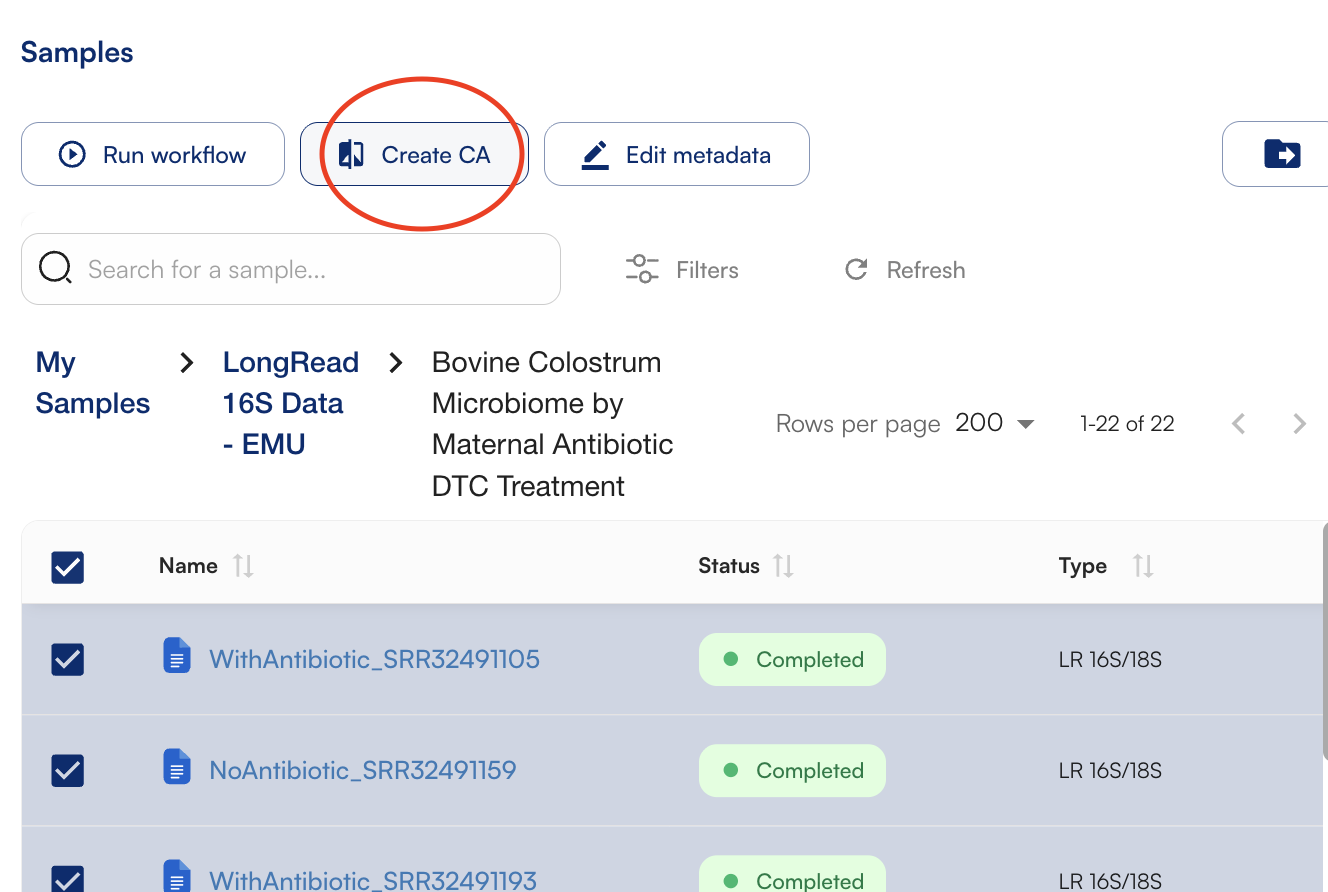
## To start, select your samples and click "Create CA"
## Group samples into cohorts based on metadata or tags
### 1. Using uploaded metadata
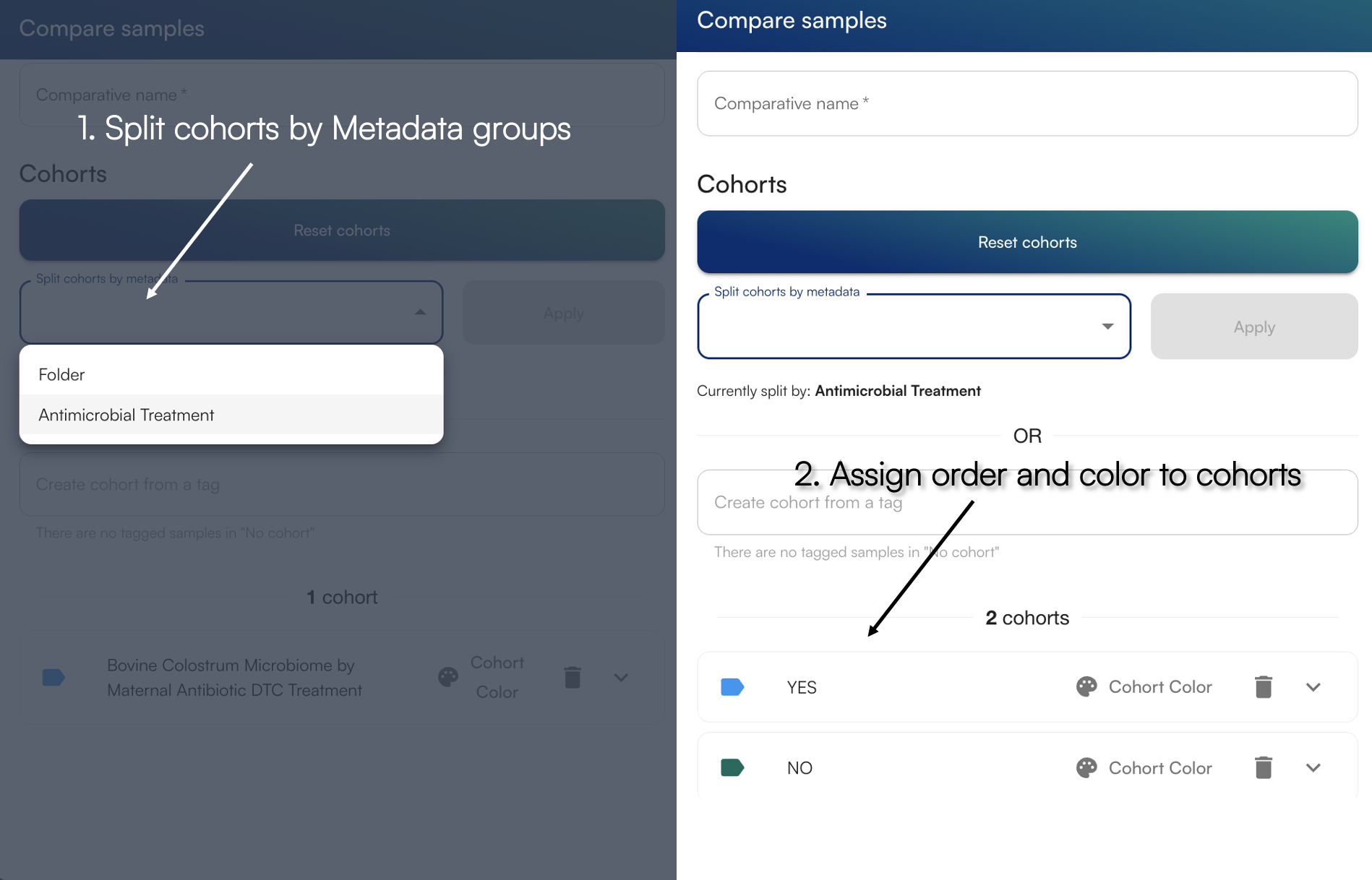
Give a descriptive name to your analysis file, and select the dropdown "Split cohorts by metadata" to view input metadata fields. For example, selecting the *Antimicrobial Treatment* variable, it will group samples into "Yes" and "No". These variables can be any data you wish to input into the Hub.
[You can read how to upload metadata here](https://docs.cosmosid.com/docs/metadata-and-cohorts)
### 2. Using quick tags (#)
You can also define cohorts by adding custom tags to samples in the Samples menu, then use those tags to group samples.
The \*\*names \*\*of comparative analysis only allow letters, numbers, and these special characters: `'`, `&`, `(`, `)`, `[`, `]`, `+`, `!`, `.`, `-`, `_`
## If you are still having trouble:
Watch the comprehensive tutorial here:
## Rename or delete analyses
1. Click the comparative analysis icon in the left panel
2. Select one or more analyses
**To delete:**
* Click the Delete icon (you can delete multiple at once)
* Confirm deletion when prompted
* Note: Deleted analyses are permanently removed but can be recreated from original files
**To rename:**
* Select only one analysis
* Click the Rename icon
* Enter a new name using allowed characters: letters, numbers, `'`, `&`, `(`, `)`, `[`, `]`, `+`, `!`, `.`, `-`, `_`
 ## Group samples into cohorts based on metadata or tags
### 1. Using uploaded metadata
Give a descriptive name to your analysis file, and select the dropdown "Split cohorts by metadata" to view input metadata fields. For example, selecting the *Antimicrobial Treatment* variable, it will group samples into "Yes" and "No". These variables can be any data you wish to input into the Hub.
[You can read how to upload metadata here](https://docs.cosmosid.com/docs/metadata-and-cohorts)
## Group samples into cohorts based on metadata or tags
### 1. Using uploaded metadata
Give a descriptive name to your analysis file, and select the dropdown "Split cohorts by metadata" to view input metadata fields. For example, selecting the *Antimicrobial Treatment* variable, it will group samples into "Yes" and "No". These variables can be any data you wish to input into the Hub.
[You can read how to upload metadata here](https://docs.cosmosid.com/docs/metadata-and-cohorts)
 ### 2. Using quick tags (#)
You can also define cohorts by adding custom tags to samples in the Samples menu, then use those tags to group samples.
### 2. Using quick tags (#)
You can also define cohorts by adding custom tags to samples in the Samples menu, then use those tags to group samples.