

What is an Analysis Snapshot?
On Cosmos-Hub 2.0, an Analysis Snapshot is a saved state of an analysis within an Analysis Project. It records the Analysis Module, the parameter values used, and the output produced, together with the name and description provided when the snapshot is saved. Snapshots allow a specific analysis configuration to be preserved and reopened later. They also provide a record of how an analysis has changed over time and make it possible for other Workspace members to review or continue from a saved state.Navigating AP’s Snapshot History
Clicking an Analysis Project opens the Analysis Project Dashboard. The Analysis Snapshots section lists all snapshots saved for that project. Each Analysis Snapshot acts as an entry point to the Analysis Studio, opening the Analysis Module used for that analysis together with the saved parameter configuration.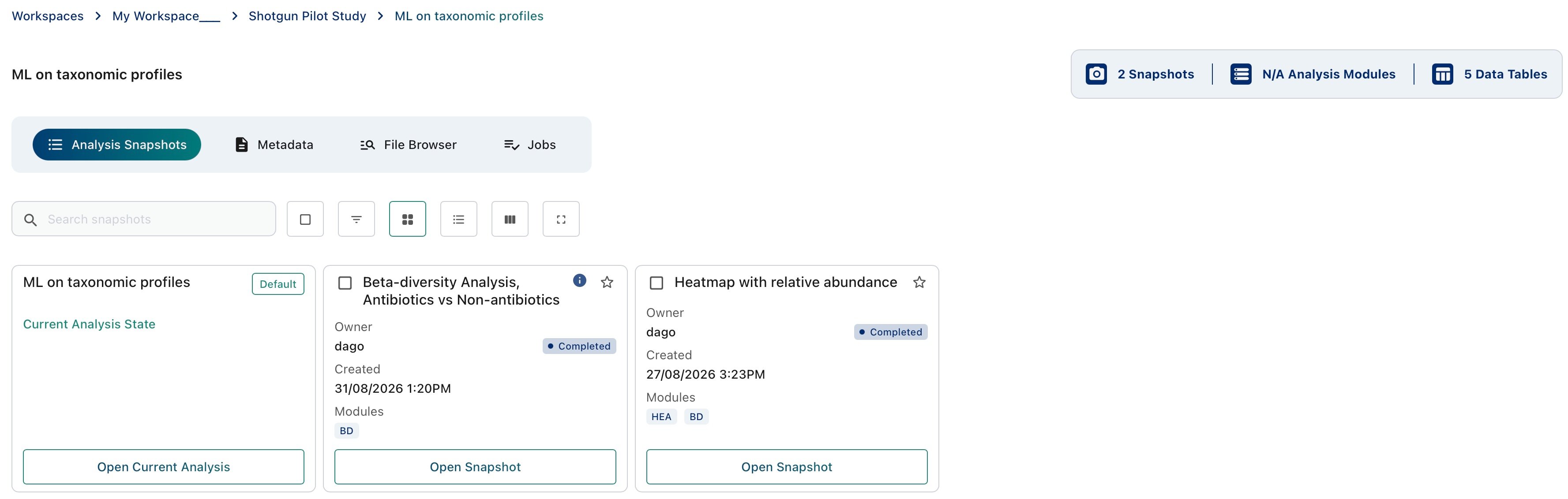
- Click Open Current Analysis (Default) to open the latest state of the Analysis Studio.
- Click Open Snapshot to open a saved Analysis Snapshot in the Analysis Studio, with the corresponding Analysis Module and parameter configuration restored.
Searching and filtering Analysis Snapshots within an AP
Use the search bar in the Analysis snapshots of the Study Dashboard to find Analysis Projects and change how they are displayed.
- Select all selects every Analysis Snapshot in the list. Available in card view only.
- Show Filters displays filters below the column names. Enter text or numbers to search within a specific metadata column.
- Card View displays Analysis Snapshots as cards.
- List View displays Analysis Snapshots as rows in a table.
- Manage Columns sets which metadata columns appear in list view.
- Full Screen expands the list to fill the window.
Rename and delete Snapshots
Switch the view to list mode (4) and select a snapshot to rename or delete it.Navigating snapshot from the Analysis Studio
Inside an Analysis Snapshot
Entering an Analysis Snapshot will open a saved Analysis Snapshot in the Analysis Studio, with the corresponding Analysis Module and parameter configuration restored.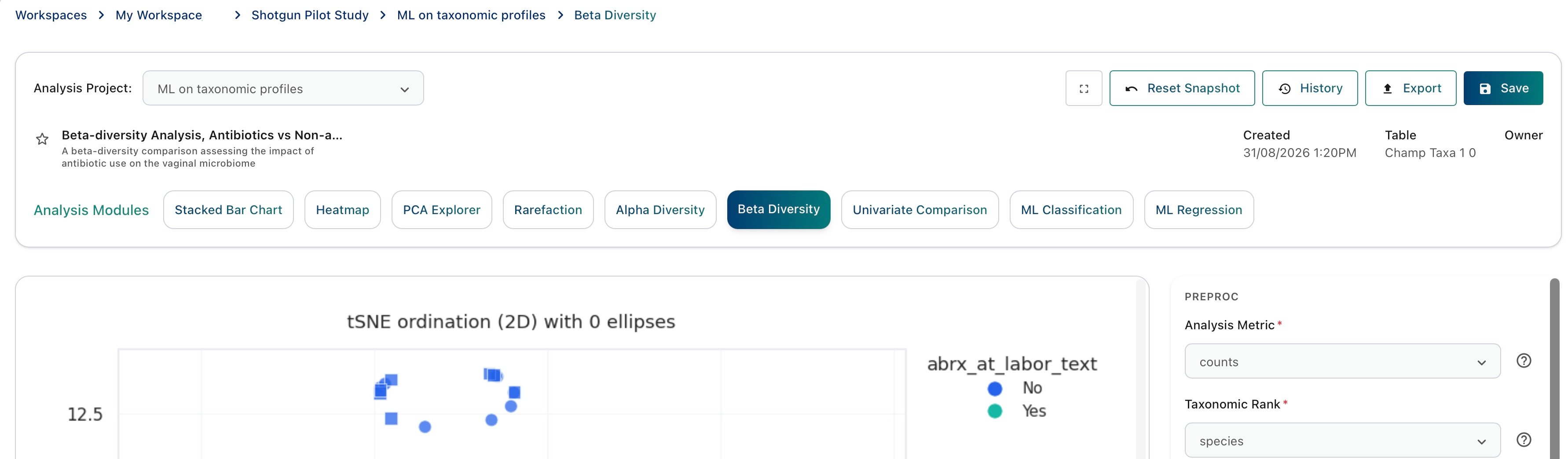
Taking Snapshots from the Analysis Studio
Inside the Analysis Studio, click Save in the control bar at the top right of the Analysis Studio and give the snapshot a name and description.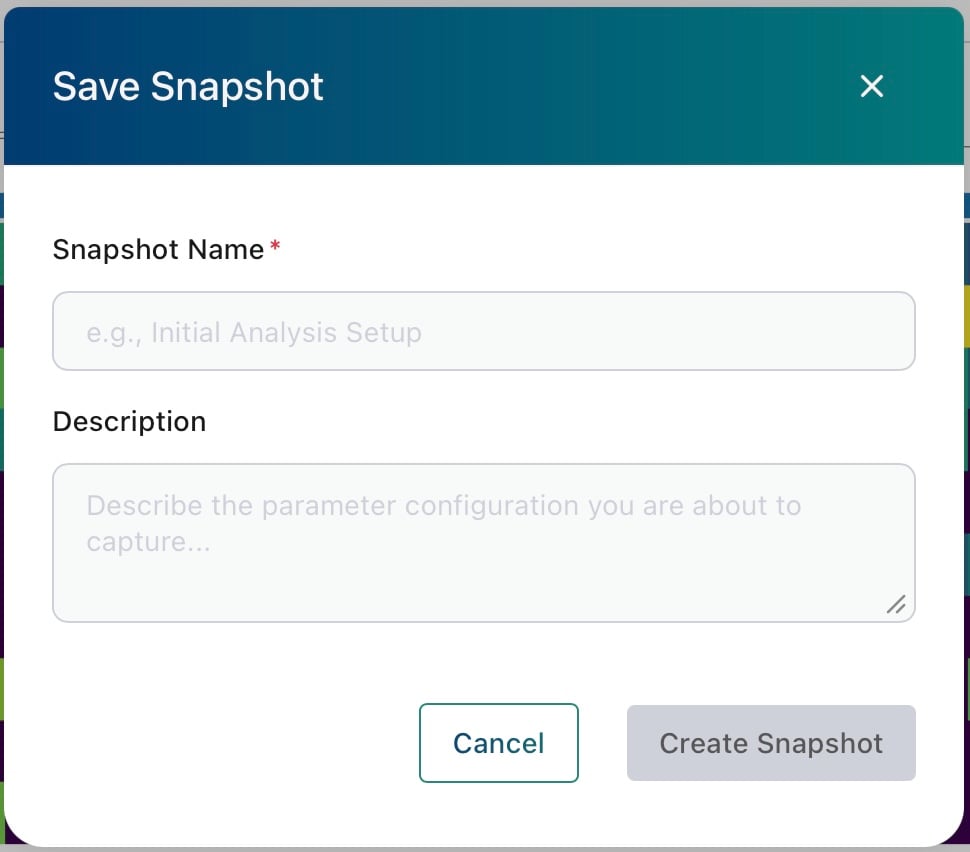
Show AP Snapshot History
Clicking on ‘History’ inside the Analysis Studio will display the list of all Snapshots available for the current Analysis Projects. This list is equivalent to that shown in Analysis Snapshots section of the Analysis Project Dashboard.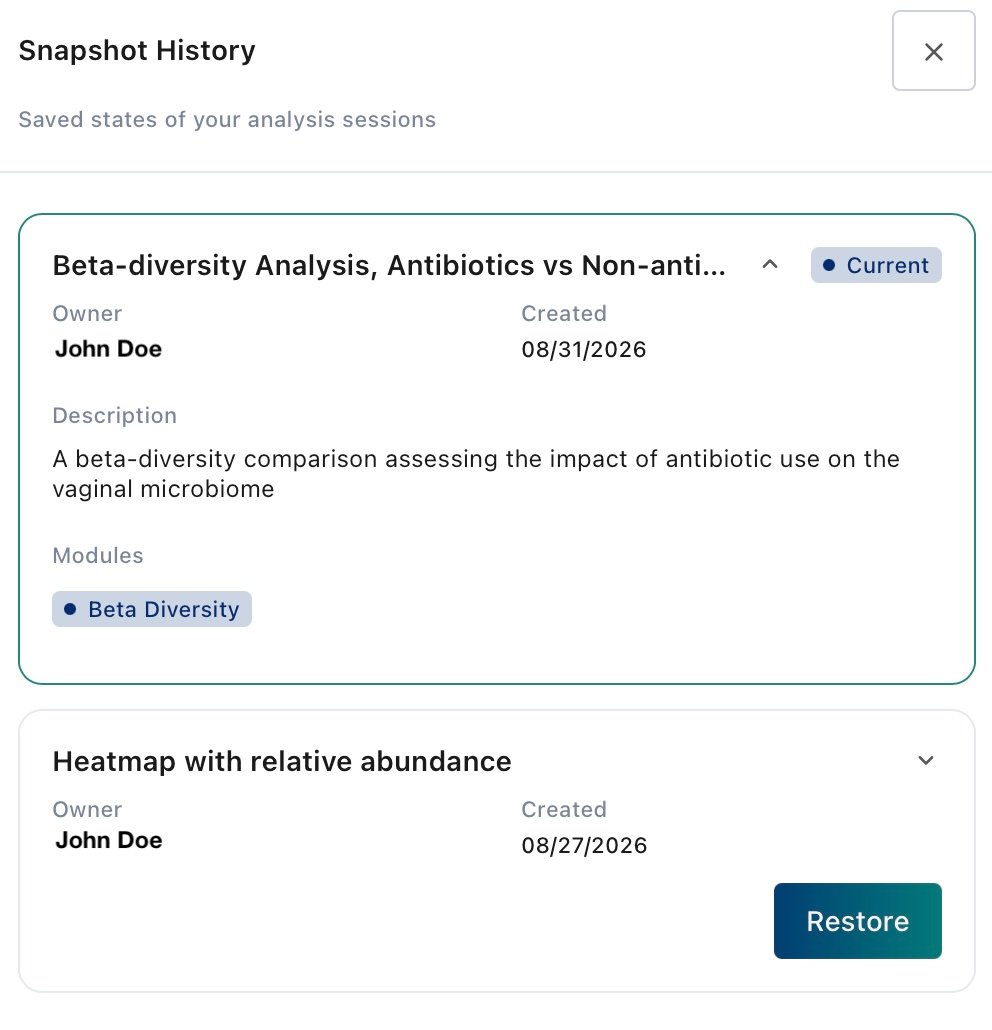
- Clicking on Restore for a snapshot will change the current Analysis Studio view to that Snapshot analysis module and parameters
Reset Snapshot and Restore do different things. Reset Snapshot undoes unsaved parameter changes in the snapshot you are working on. Restore, in the Snapshot History panel, switches to a different saved snapshot.