

Cosmos-Hub Pipelines remains the sample profiling engine of the Cosmos-Hub ecosystem. For a refresher on how to upload and profile FASTQ files for your samples, please visit Uploading Sequencing Data and Running Data WorkflowsProfiles previously generated on Cosmos-Hub Pipelines can be imported into your Cosmos-Hub 2.0 workspaces.
Before starting
Before starting the import, you will need to:- Create or ensure there is a destination workspace in Cosmos-Hub 2.0 to receive the data.
- Have a folder of samples already profiled on Cosmos-Hub Pipelines.
- Have access to both Cosmos-Hub Pipelines and Cosmos-Hub 2.0 with the same account.
Import sample profiles from Cosmos-Hub Pipelines
1
Navigate to the folder with profiles to be exported to Cosmos-Hub 2.0
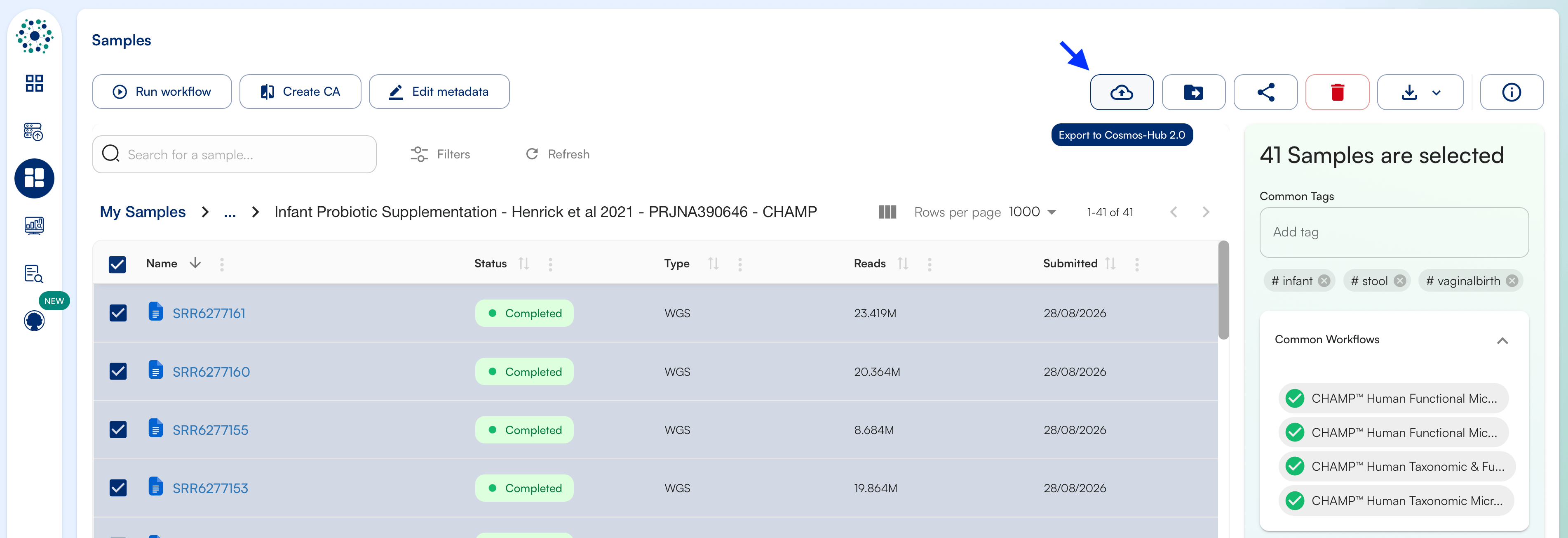
- Once logged on Cosmos-Hub Pipelines, navigate to the Sample View menu and open the folder with your profiled samples.
- Set Rows per page to the maximum (10,000) and select all samples.
-
Click on ‘Export to Cosmos-Hub 2.0’
2
Export selected samples to the target Cosmos-Hub 2.0 workspace
The Export Dialog shows the list of samples selected for export and which workflows will be included.
-
Enter a name in the Define the CA Name field. Depending on the number and workflows of profiles, the export might take a while to complete. You can track progress on the Comparative Analysis page under the name you entered.
-
Select the Target Workspace from the dropdown list. Export of profiles is available only for workspaces that you have write access to.
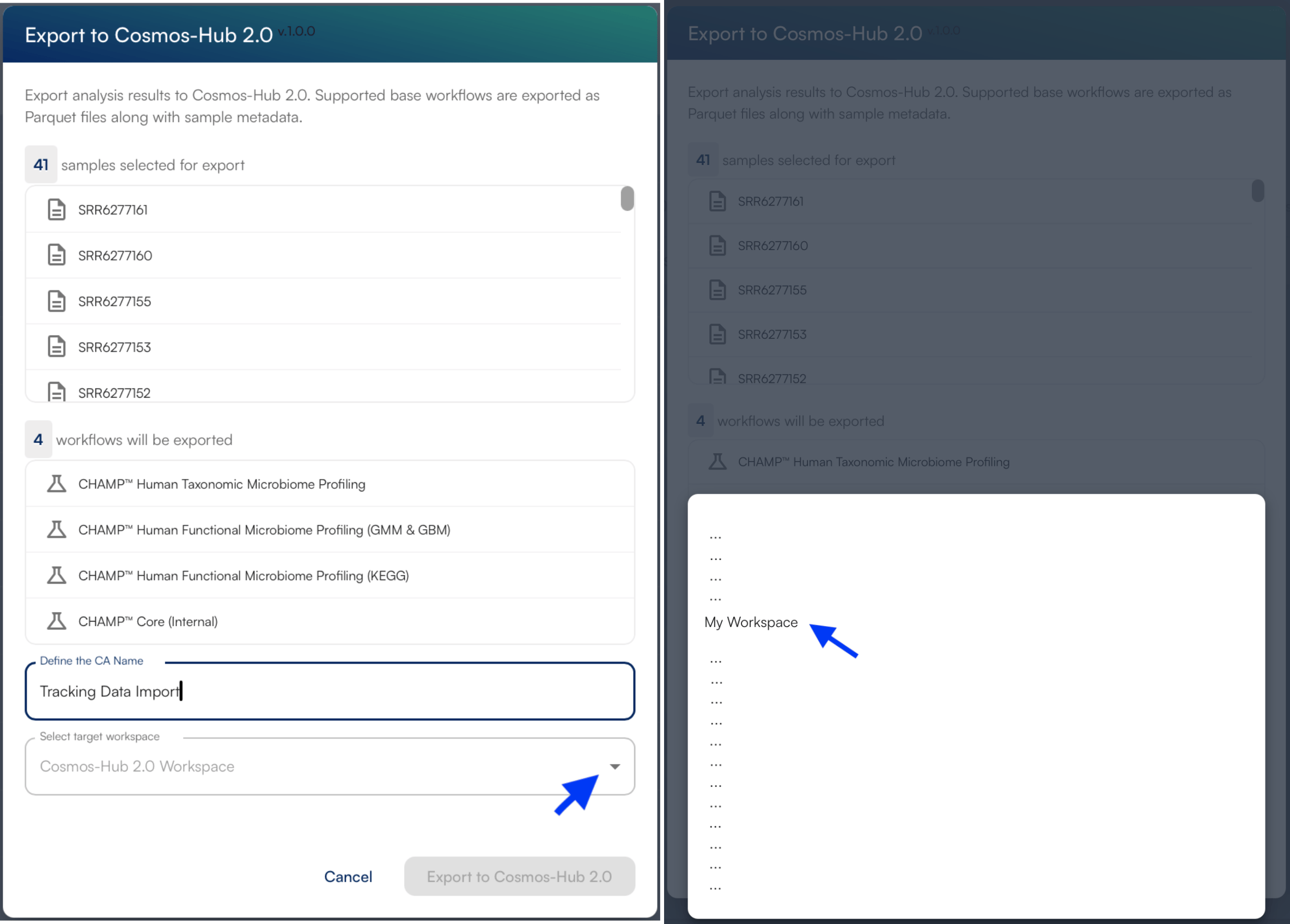
- Click on Export to Cosmos-Hub 2.0.
3
Check successful import of your profiles
When the export job’s status changes to Success, the profiles will be available in the destination Cosmos-Hub 2.0 workspace and ready for cohort building and analysis.
Next step
Create a Cohort with the Query Builder
Use the Query Builder to select the samples for your first analysis.