

What is a Study?
A single research project
A Study is a project-level container within a Workspace, representing a single research project carried out by a research unit. The purpose of a Study is to group all the project’s omics data, sample metadata, Analysis Projects and output results, along with supplementary files, under a common scientific context.A traceable analytical record of your research
Studies keep analyses connected to the data and cohorts they use, along with the parameters and configurations that produced the research outputs. This makes results easier to understand, trace, and reproduce over time. Anyone joining the project can quickly see what has already been done and continue from the existing work, without being hampered by missing context or undocumented steps. In the Cosmos-Hub hierarchy, a Study sits inside a Workspace. Entering a Workspace opens the Studies Dashboard, which lists all the Studies created in that Workspace.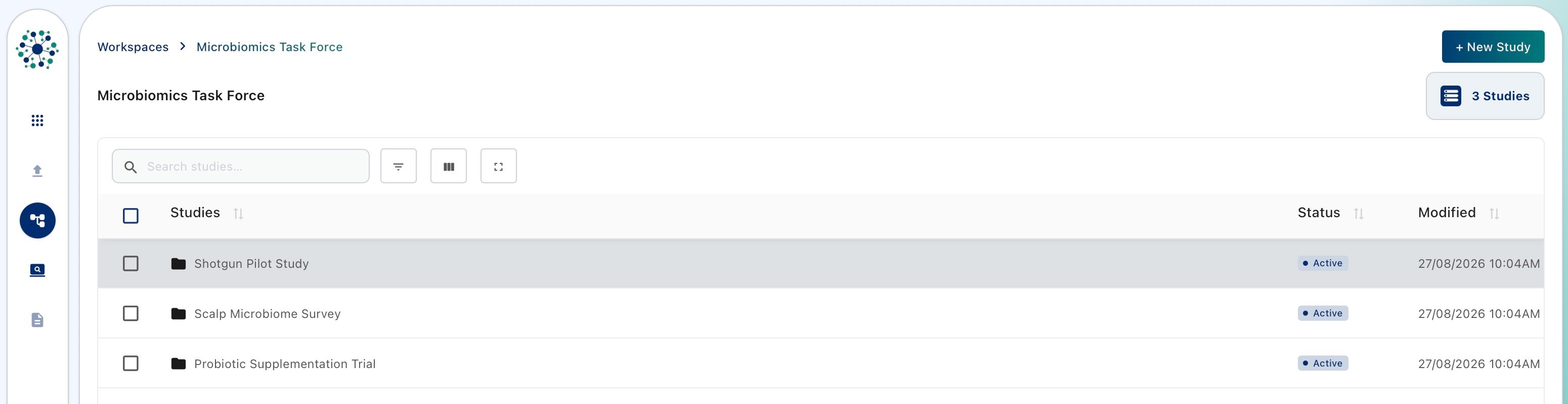
Accessing a Study
Enter a Study by clicking on its name. Entering a Study opens the Study Dashboard, which gives access to all the assets contained in the Study.Create a new Study
- Inside a Workspace, click on ”+ New Study” in the top-right corner of the interface to set up study details.
- Choose a name for the new study, set Study Sharing permissions [Feature in active development] and add a Study description to provide context about the study.
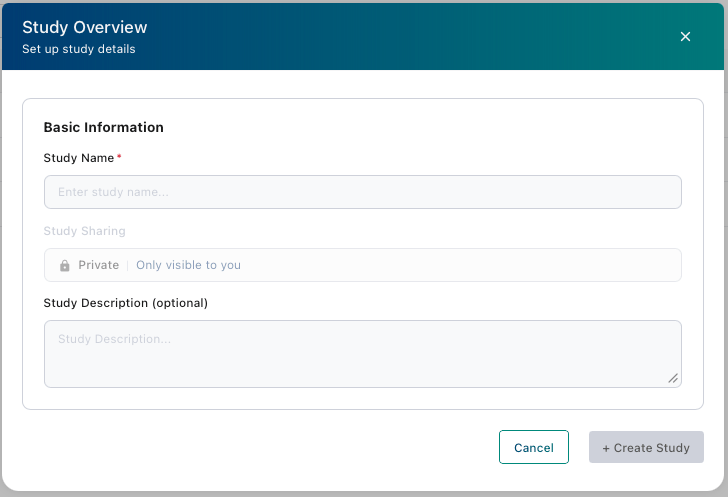
- Once created, the new Study will appear on the Studies Dashboard.
Searching and filtering the Studies Dashboard

- Show Filters: displays dynamic filters below the column names in the Studies List. Use these filters to search within specific study metadata columns by entering text or numbers.
- Manage Columns: toggle study metadata columns to be displayed from the Studies List.
- Full screen: expands the Studies List to full-screen mode, making it easier to review, filter, and manage large lists of studies.
Edit properties of existing Studies
Select the study to edit by clicking the checkbox next to its name. Once a study is selected, the row is highlighted and the action buttons become available above the Studies List.
Renaming a Study
Select a single study and click on Rename to change its name.Deleting a Study
Select a single study and click on Delete.Be careful when deleting a Study: it’s permanent and cannot be undone. All associated data, settings, and results will be removed.